Signing in
Staff sign in to the case dashboard at the Staff Portal with a sign-in code emailed to you — there is no password to set or remember.
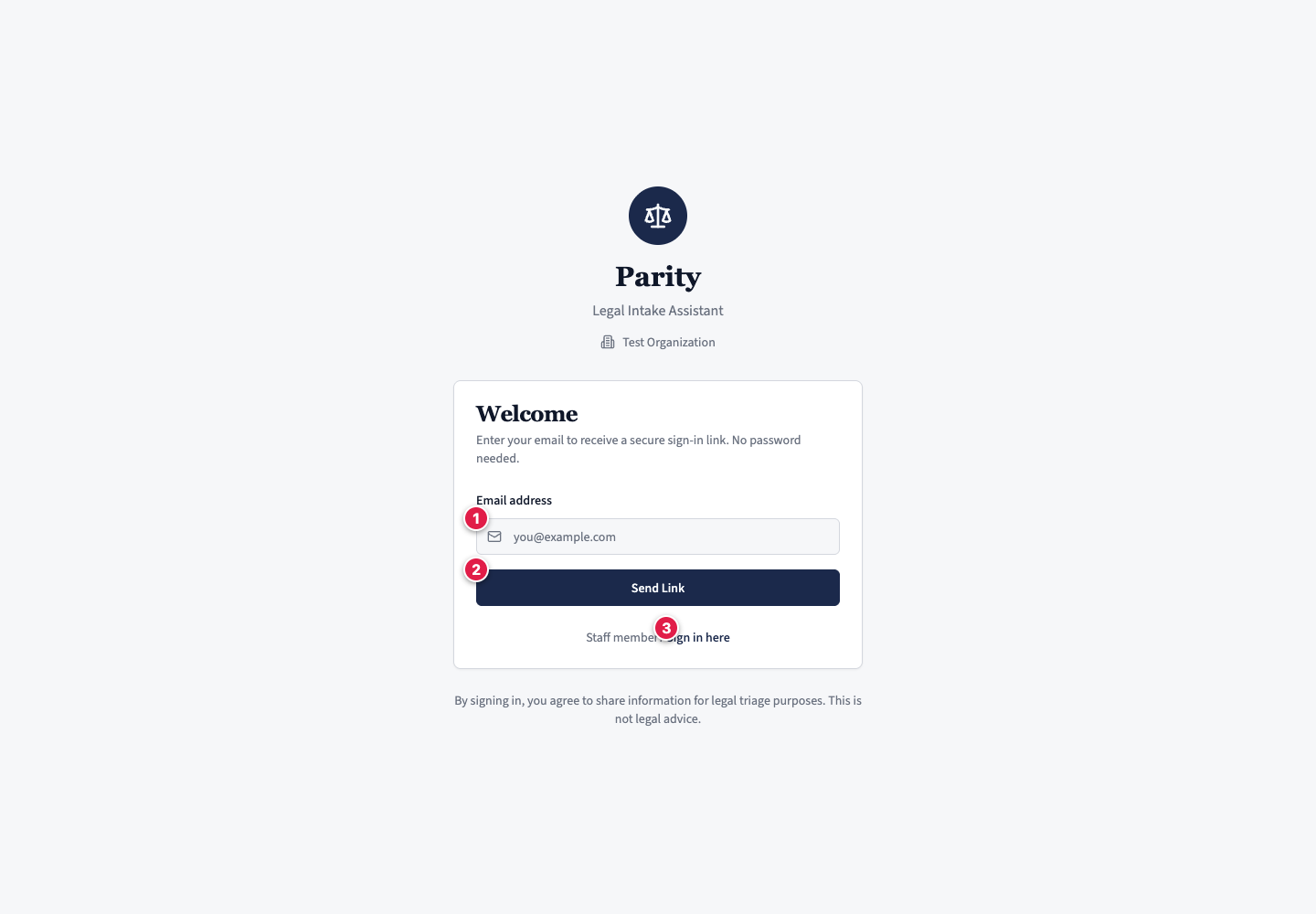
The screen above is the default sign-in screen, which clients use. As staff, look for the Staff member? prompt and click the Sign in here link next to it to reach the Staff Portal — the same passwordless sign-in, but it routes you to the dashboard instead of the intake chat.
Getting to the dashboard
- Open the sign-in page.
- Next to the Staff member? prompt, click the Sign in here link to open the Staff Portal.
- Enter your work email and click Send code. You'll see "Enter your code".
- Open the email, copy the code, and type it into the Staff Portal. You land on the case management dashboard for your clinic.
Sign-in codes are single-use and expire. If a code has already been used or has expired, the page says so — just request a new code and try again. You can also use the sign-in link in the same email if you prefer.
Getting staff access
Staff access is granted by invitation. A clinic administrator invites your email address from the organization settings:
- If you already have a Parity account, you are added as a member immediately.
- If not, you receive an invite email. Sign in at the Staff Portal with that email within 7 days and the invitation is applied automatically — you land straight in the dashboard.
There is no separate sign-up form: your account is created the first time you sign in with that email.
"Almost there" — no staff access yet
If you sign in at the Staff Portal before being invited, you'll see an Almost there screen: you're signed in, but you don't have staff access yet. Ask your clinic administrator to invite that email address, then click I've been added — check again.
See Members & roles for who can invite staff and assign roles.
Clients use the same passwordless sign-in but are guided into the intake chat instead — see What clients see.